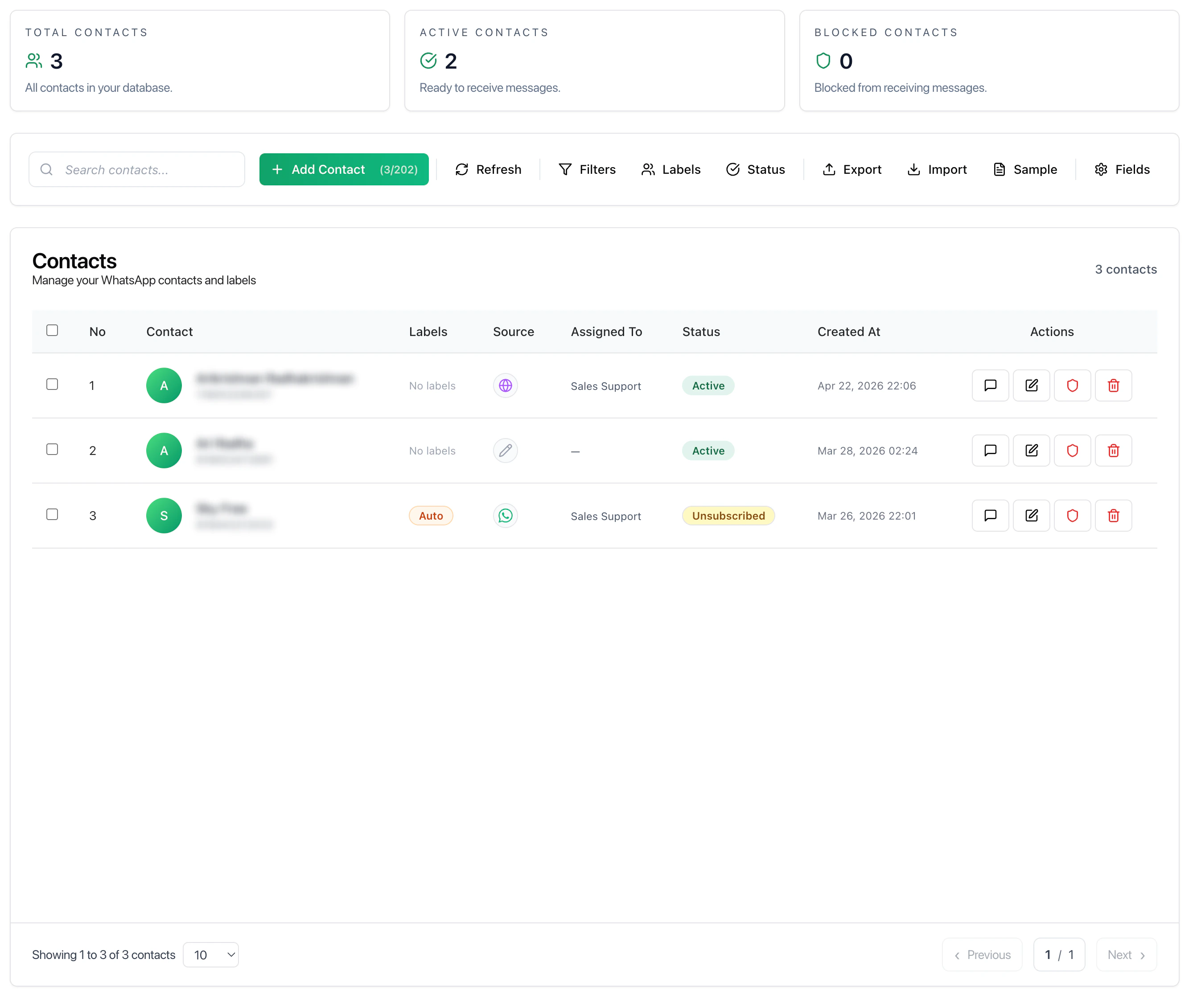
The Contacts page is where all customer data is managed. It provides a centralized view of users across channels along with their status, labels, and activity. Contacts represent all users who have interacted with your system through connected channels.
This page allows you to manage, organize, and take action on your contact database.
Key Metrics
- Total Contacts — All contacts stored in the system
- Active Contacts — Contacts available for messaging
- Blocked Contacts — Contacts restricted from receiving messages
These metrics provide a quick snapshot of your contact base.
What You Can Do
- View all contacts in one place
- Add new contacts manually
- Search contacts by name or phone
- Manage contact status
- Export or import contact data
The main table displays detailed information for each contact.
Fields
- Contact — Name and phone number
- Labels — Tags used for segmentation
- Source — Channel or origin of contact
- Assigned To — Responsible team member
- Status — Active or unsubscribed
- Created At — When the contact was added
Instead of managing users inside conversations:
- Maintain a structured contact database
- Segment users effectively
- Assign ownership clearly
- Enable better targeting for campaigns
Recommended Workflow
- Add or import contacts
- Assign labels for segmentation
- Assign contacts to team members
- Use filters to manage groups
- Use contacts in campaigns or automations
Best Practices
- Keep contact data clean and updated
- Use labels consistently
- Avoid duplicate contacts
- Regularly review inactive or unsubscribed users
- Use import/export for bulk updates
Last modified on May 17, 2026