The Conversation View is the active chat workspace where messages are read, managed, and replied to.
This is the core area where operators interact directly with customers.
Message Timeline
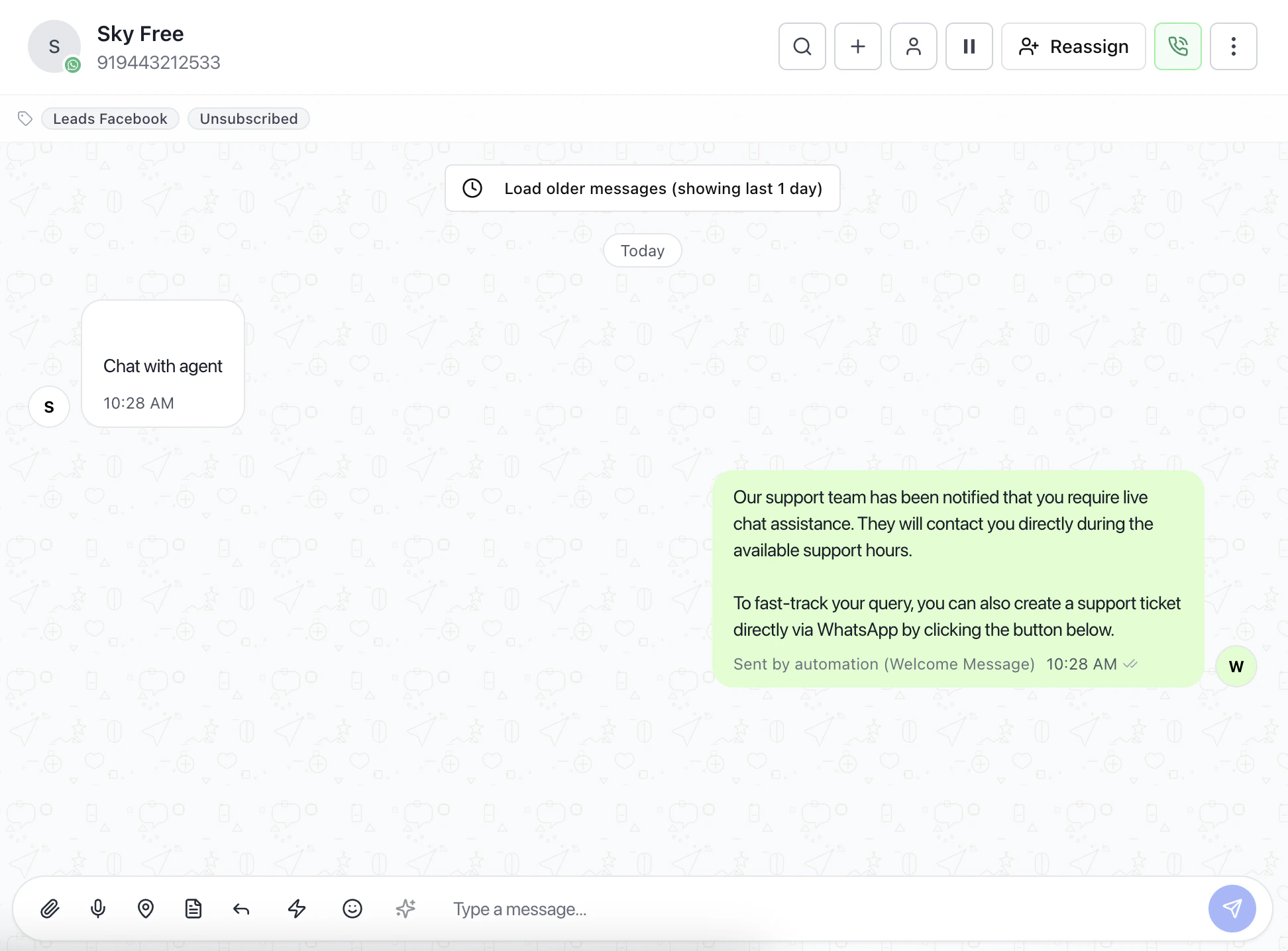
The center of the screen displays the full conversation history.
What users do here
- Read previous messages before replying
- Understand customer context
- Track automated vs manual responses
- View timestamps and delivery status
Why it matters
Reviewing the timeline prevents:
- Duplicate replies
- Out-of-context responses
- Missed customer intent
The top section contains key conversation controls.
What users see
- Contact name and phone number
- Channel (e.g., WhatsApp)
- Labels and status (e.g., Unsubscribed)
What users can do
- Reassign conversation
- Pause or resume automation
- Start actions like call or menu options
Conversation Actions
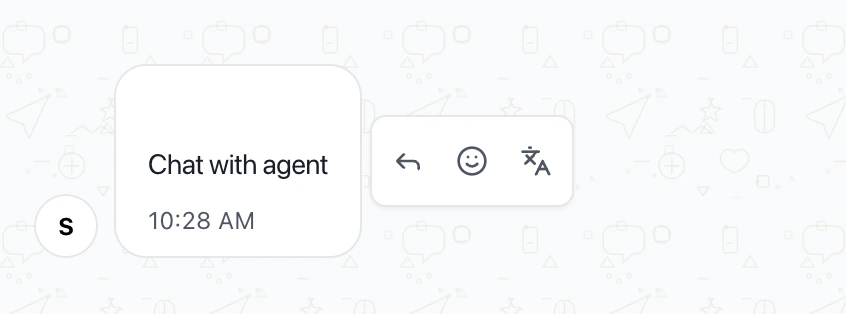
Actions are available directly within the chat.
Examples
- Translate message
- React to messages
- Perform quick actions (reply tools)
These help operators respond faster without leaving the chat.
Reply Composer
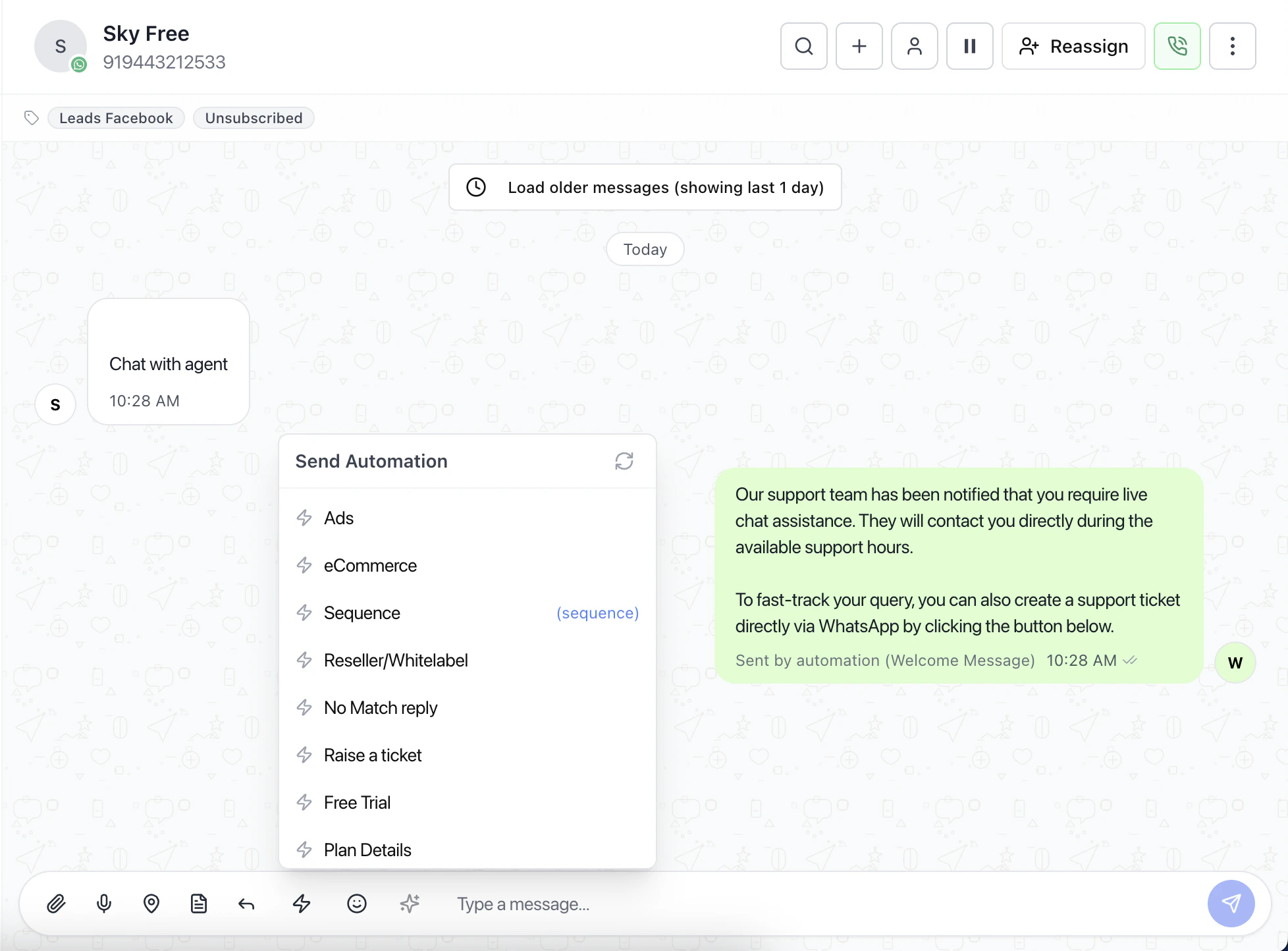
The bottom input area is used to send messages.
Features
- Type and send replies
- Attach files or media
- Send location or documents
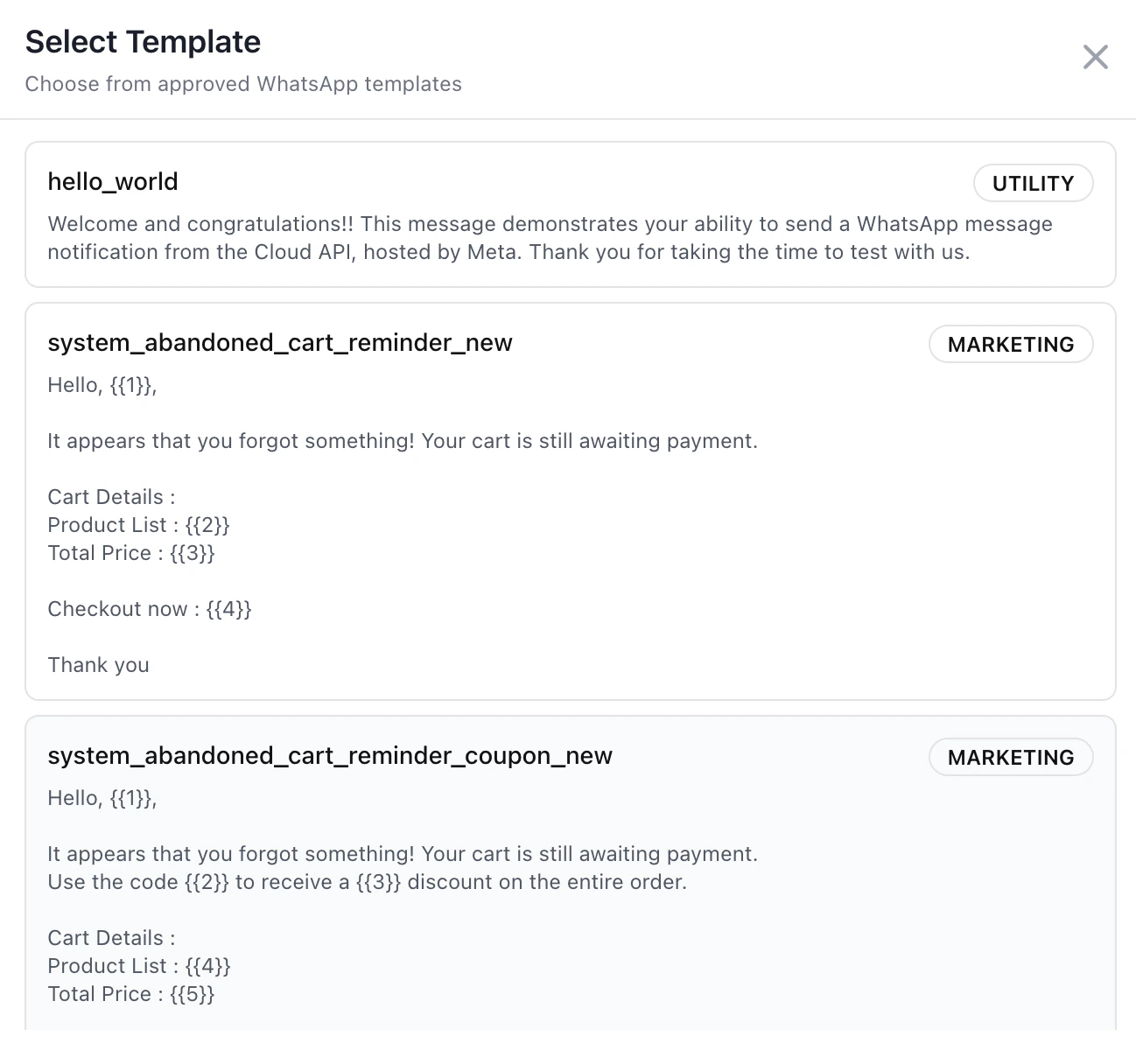
- Use templates or automation triggers
Best practice
Before sending a reply:
- Review recent messages
- Confirm correct conversation
- Check assignment
- Send appropriate response
System Messages
Some messages are generated automatically.
Examples
- Automation responses
- Welcome messages
- System notifications
These are marked clearly (e.g., “Sent by automation”) to differentiate from manual replies.
Load More Messages
Older messages can be loaded when needed.
- Helps review past conversations
- Useful for long-running support threads
Why Conversation View Matters
This is where actual communication happens.
- Centralizes all interaction
- Ensures context-aware replies
- Improves response quality and speed
Last modified on May 17, 2026